hardware guide
Best Webcams for Streaming in 2026
Looking for the best webcams for streaming? We review top models from Logitech, Elgato, Razer, and OBSBOT to help you find the right fit for Twitch and YouTube.
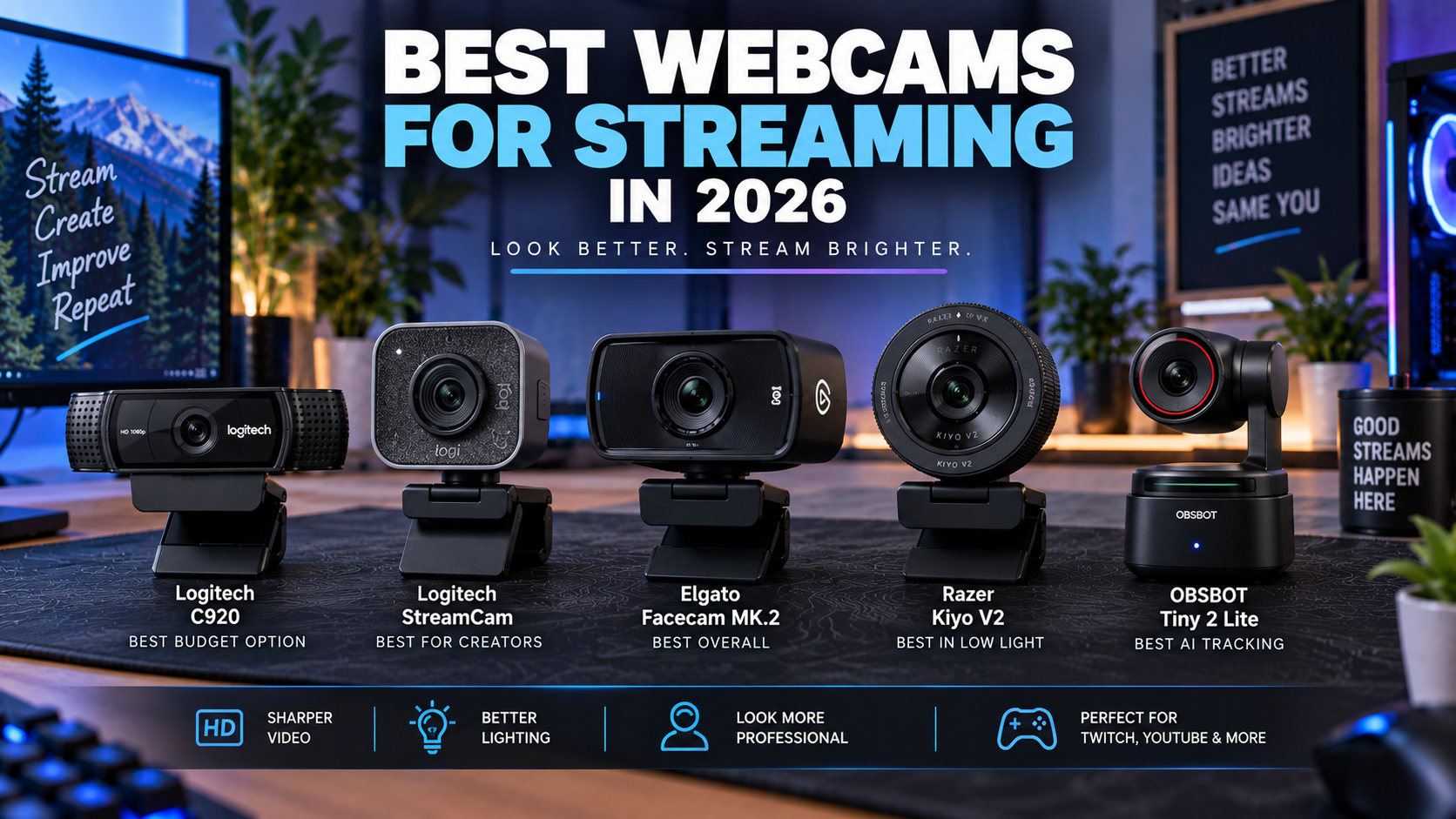
Choosing the right video hardware can make or break viewer engagement on Twitch and YouTube. While a higher price tag or raw resolution specification is often assumed to equal superior video clarity, real-world streaming performance depends heavily on sensor optimization, frame rates, and room lighting.
Whether you need an affordable plug-and-play benchmark, smooth 60FPS motion capture, uncompressed optical fidelity, or intelligent AI framing, selecting the right device eliminates bottlenecks in your setup. This guide breaks down the top choices for every streaming style, budget tier, and technical requirement.
Key Takeaways
- Resolution alone does not guarantee a great stream; proper lighting and sensor performance matter equally.
- The Logitech C920 remains the benchmark reliable choice for budget-conscious creators needing dependable 1080p30 video.
- Models like the Logitech StreamCam and Elgato Facecam MK.2 unlock smooth 60FPS capture for faster-paced motion.
- AI-powered tracking options like the OBSBOT Tiny 2 Lite excel on dynamic streams where the presenter moves around.
- Upgrading physical lighting often yields a more dramatic improvement in video crispness than buying a more expensive camera.
- Transitioning to a mirrorless camera setup like the Canon EOS R50 offers a true shallow depth of field for advanced creators.
Quick Picks
- Logitech C920 — Budget-conscious creators looking for proven, reliable performance.
- Logitech StreamCam — Streamers requiring smooth motion and multi-platform vertical framing.
- Elgato Facecam MK.2 — Professional broadcasters wanting deep manual control and pristine uncompressed feeds.
- Razer Kiyo v2 — Gamers and talk-show hosts needing dependable focus and custom tuning.
- OBSBOT Tiny 2 Lite — Presenters, instructors, and creators who move around during their broadcasts.
Streaming Webcam Quick Comparison
| Model | Max Resolution | Max Frame Rate | Best For | Connectivity |
|---|---|---|---|---|
| Logitech C920 | 1080p | 30 FPS | Budget reliability | USB-A |
| Logitech StreamCam | 1080p | 60 FPS | Smooth motion & vertical video | USB-C |
| Elgato Facecam MK.2 | 1080p | 60 FPS | Uncompressed fidelity & manual control | USB-C |
| Razer Kiyo v2 | 1080p | 60 FPS | Advanced focus & creator features | USB-C |
| OBSBOT Tiny 2 Lite | 4K / 1080p | 60 / 30 FPS | AI tracking & dynamic movement | USB-C |
Logitech C920
Relevant option
The established benchmark for affordable 1080p streaming without complex software overhead.
Who it is best for
Budget-conscious creators looking for proven, reliable performance.
Important features
- Full HD 1080p video capture at 30fps
- Dual stereo microphones
- Automatic light correction
- Universal mounting clip
Pros
- Extremely reliable and widely compatible
- Affordable entry point
- Simple plug-and-play setup
Cons
- Capped at 30fps for 1080p
- Older sensor struggles in low light without external illumination
Logitech C920
View current specifications, availability, and pricing from the retailer.
Best for
Relevant option
Price and availability on Amazon
Check Price on AmazonLogitech StreamCam
Relevant option
Delivers smooth 1080p60 capture and convenient USB-C connectivity with smart auto-focus.
Who it is best for
Streamers requiring smooth motion and multi-platform vertical framing.
Important features
- 1080p capture at 60fps
- USB-C high-speed connection
- Smart auto-focus and exposure tracking
- Physical mount supporting portrait orientation
Pros
- Butter-smooth 60fps video
- Flexible mounting for vertical content
- Reliable software ecosystem
Cons
- Requires a USB-C port for optimal performance
- Higher price tier than basic legacy models
Logitech StreamCam
View current specifications, availability, and pricing from the retailer.
Best for
Relevant option
Price and availability on Amazon
Check Price on AmazonElgato Facecam MK.2
Relevant option
Provides uncompressed 1080p60 video output and advanced manual customization via software.
Who it is best for
Professional broadcasters wanting deep manual control and pristine uncompressed feeds.
Important features
- Sony STARVIS CMOS sensor
- Uncompressed 1080p60 video output
- Advanced Elgato Camera Hub software
- Integrated privacy shutter
Pros
- Exceptional low-light sensor performance
- Zero compression artifacts
- Comprehensive manual camera settings
Cons
- Lacks built-in microphone (external mic required)
- Premium price point for a 1080p webcam
Elgato Facecam MK.2
View current specifications, availability, and pricing from the retailer.
Best for
Relevant option
Price and availability on Amazon
Check Price on AmazonRazer Kiyo v2
Relevant option
Offers robust focus controls and reliable performance tailored for modern content creators.
Who it is best for
Gamers and talk-show hosts needing dependable focus and custom tuning.
Important features
- Advanced autofocus mechanism
- High-framerate 1080p support
- Razer Synapse integration
- Flexible mounting options
Pros
- Reliable tracking and focus response
- Seamless integration with existing peripheral suites
- Clean image processing out of the box
Cons
- Software suite can be resource-heavy
- Requires adequate lighting for best results
Razer Kiyo v2
View current specifications, availability, and pricing from the retailer.
Best for
Relevant option
Price and availability on Amazon
Check Price on AmazonOBSBOT Tiny 2 Lite
Relevant option
Features advanced AI-powered framing and tracking for dynamic, movement-heavy streams.
Who it is best for
Presenters, instructors, and creators who move around during their broadcasts.
Important features
- AI-powered auto-tracking and framing
- Gesture control support
- High-resolution sensor capabilities
- Dedicated control software
Pros
- Smooth motorized tracking functionality
- Hands-free gesture controls
- Excellent auto-framing precision
Cons
- Tracking motor can pick up microphone noise if mounted improperly
- Higher cost due to motorized mechanics
OBSBOT Tiny 2 Lite
View current specifications, availability, and pricing from the retailer.
Best for
Relevant option
Price and availability on Amazon
Check Price on AmazonWhy Streaming Webcams Fail Without Proper Setup
Many creators invest in expensive video hardware only to find their stream looks grainy, washed out, or laggy. This usually happens because small webcam sensors require significant light to capture clean image data. When ambient room illumination is insufficient, the sensor amplifies digital gain, introducing heavy visual noise that compression algorithms struggle to process.
Understanding your workflow helps identify the exact bottleneck you need to solve. If your broadcast suffers from stuttering motion, you may need a higher frame rate. If your image looks dull, upgrading your lighting environment is often more cost-effective than buying a new camera.
- Evaluate whether your current lighting causes digital grain and sensor noise.
- Check your streaming software output resolution and encoder bitrate limits.
- Ensure your USB port supports the bandwidth required for uncompressed or high-framerate streams.
Resolution Versus Frame Rate
Higher resolution is not always better for live broadcasting. While 4K options exist, most streaming platforms limit ingest bitrates, causing 4K feeds to downscale or compress heavily. For most creators, a stable 1080p stream running at 30 or 60 frames per second provides the optimal balance between visual fidelity and network stability.
- 1080p30 works well for standard talking-head chats and coding streams.
- 1080p60 is ideal for fast-paced gaming where smooth motion tracking is critical.
- Consider platform ingestion caps before streaming native ultra-high resolutions.
How to Choose the Right Streaming Webcam
Selecting the ideal model requires balancing your budget, mounting constraints, and software preferences. Fixed focal lengths work well if you sit at a consistent distance from your desk, whereas advanced autofocus systems adapt if you lean in or show physical items to the audience.
Software control is another critical differentiator. Dedicated utility apps allow you to adjust exposure, white balance, field of view, and focus manually, preventing automatic adjustments from shifting mid-stream.
- Determine your typical desk distance and mounting position.
- Decide if you prefer simple plug-and-play operation or deep software customization.
- Verify mounting hardware compatibility with your monitor or desk arm.
Field of View and Framing
Field of view (FOV) dictates how much of your room is visible in the frame. A wide FOV captures your entire background, which requires a clean setup. A narrower FOV isolates you from the environment, making it easier to maintain a professional look without specialized acoustic or decor elements.
- Wide fields of view suit full-body or multi-person shots.
- Narrower fields of view concentrate attention on upper-body presentation.
- Software cropping can help narrow a wide lens angle digitally.
Webcam Versus Mirrorless Camera Upgrades
As creators progress, many outgrow traditional USB webcams and transition to dedicated mirrorless cameras. Mirrorless bodies feature significantly larger physical sensors that capture superior dynamic range, natural skin tones, and a shallow depth of field that gracefully blurs the background.
However, transitioning to a mirrorless system involves additional hardware, such as a clean HDMI capture card, continuous power solutions, and dedicated mount adjustments. Webcams remain the superior choice for simplicity, cost-efficiency, and straightforward USB connectivity.
- Webcams offer instant USB plug-and-play simplicity without extra capture hardware.
- Mirrorless cameras provide cinematic background blur and exceptional low-light performance.
- Evaluate your budget and technical comfort level before making the leap to dedicated camera bodies.
When to Make the Jump
If your content relies heavily on product showcases, cinematic aesthetics, or professional studio branding, a dedicated camera is a worthy long-term investment. If you simply want a clean, reliable feed for standard chat interactions, a high-end USB webcam will serve you well for years.
- Upgrade when lighting and audio optimization no longer satisfy your visual standards.
- Ensure your streaming PC can handle extra video capture routing if necessary.
Frequently Asked Questions
faqQ: Do I need a 4K webcam for streaming on Twitch or YouTube?
Most streaming platforms ingest video at 1080p or lower to manage bandwidth and compression. A high-quality 1080p webcam with good lighting often looks sharper and runs more reliably than a budget 4K webcam.
faqQ: Why does my streaming webcam look grainy or pixelated?
Graininess is usually caused by insufficient ambient light, forcing the camera sensor to boost digital gain. Adding dedicated lighting like a soft panel will dramatically clear up image noise.
faqQ: Should I use autofocus or manual focus for streaming?
Manual focus is generally preferred for stationary talking-head streams to prevent the camera from hunting for focus when you move slightly. Autofocus is better if you frequently hold objects up to the lens.
faqQ: Can I use a mirrorless camera as a webcam?
Yes. Many modern mirrorless cameras output a clean HDMI signal that can be routed into your streaming PC via a capture card, delivering cinematic depth of field and superior low-light performance.
faqQ: What is the difference between 30FPS and 60FPS streaming?
30 frames per second is standard for casual chatting and podcasts. 60 frames per second provides much smoother motion capture, which is ideal for fast-paced gaming and action-heavy content.
faqQ: Do webcams include built-in microphones?
Some webcams feature built-in microphones, but they typically pick up room echo and keyboard clicks. For professional stream audio, using a dedicated USB or XLR microphone is strongly recommended.
faqQ: How important is webcam placement?
Placement is crucial. Positioning your webcam at eye level looking straight ahead creates a natural, engaging connection with your audience, whereas looking down into a low-angle lens is less flattering.
faqQ: Do I need special software to run these webcams?
Most webcams work immediately via standard UVC plug-and-play drivers, but manufacturer companion software apps allow you to fine-tune exposure, zoom, white balance, and focus.
Conclusion
Upgrading your video setup does not require guessing or spending money on unnecessary hardware specifications. By identifying your exact content style, ensuring proper desk placement, and prioritizing clean lighting alongside your chosen camera, you can achieve a professional broadcast that keeps viewers engaged.
Take time to evaluate your current lighting and framing before purchasing. Whether you opt for a dependable budget workhorse or an advanced uncompressed model, the right gear will elevate your stream's production value instantly.
Related gear
Canon EOS R50
Relevant option
A powerful mirrorless camera option for creators stepping past webcams into deep depth of field.
Who it is best for
Advanced streamers ready to transition to professional mirrorless video quality.
Important features
- Large APS-C CMOS sensor
- Clean HDMI output for streaming
- Dual Pixel CMOS Autofocus
- Interchangeable lens mount
Pros
- Cinematic background blur and dynamic range
- Massive upgrade in low-light clarity
- Versatile for both streaming and photography
Cons
- Requires dummy battery and capture card
- Substantially higher total investment
Canon EOS R50
View current specifications, availability, and pricing from the retailer.
Best for
Relevant option
Price and availability on Amazon
Check Price on AmazonElgato Key Light
Relevant option
Crucial hardware lighting element to eliminate sensor noise and improve image crispness.
Who it is best for
Creators wanting professional studio illumination controlled via software.
Important features
- Edge-lit LED architecture with multi-layer diffusion
- App-controlled brightness and color temperature
- Desk-mounting metal pole included
Pros
- Flicker-free, even studio lighting
- Saves desk space with sturdy clamp mount
- Wi-Fi integration for easy adjustments
Cons
- Takes up desk space installation area
- Premium price point
Elgato Key Light
View current specifications, availability, and pricing from the retailer.
Best for
Relevant option
Price and availability on Amazon
Check Price on AmazonElgato Key Light Air
Relevant option
Delivers adjustable, diffused studio lighting for smaller streaming desk layouts.
Who it is best for
Streamers with compact desk spaces needing soft, adjustable illumination.
Important features
- Compact panel design with freestanding base
- Wi-Fi app control
- Adjustable warm-to-cold color spectrum
Pros
- Easier to fit on crowded desks than larger panels
- Provides soft, flattering light diffusion
- Reliable software control
Cons
- Lower maximum output than the full-sized Key Light
- Freestanding base can be bumped if not positioned carefully
Elgato Key Light Air
View current specifications, availability, and pricing from the retailer.
Best for
Relevant option
Price and availability on Amazon
Check Price on Amazon